While shooting, I never actually add a white balance type shot featuring a color reference card (such as an X-Rite Color Checker). Though these may be helpful when trying to get back a lighting situation if you shoot over more than one day (since you may have trouble getting lighting to match), I’ve never been too interested in achieving a perfect true-to-life color balance.
When post-processing photos from my shoots, I always do my processing in the original white balance, which should be close to real-life. At the end though, I always add some color grading to purposely add some colorizations to the image. I think it just looks cooler (pun not intended; I often warm the image up in fact 😉 ).
An added step also is to add some drama; I have an action which simply does this:
– add a Black & White adjustment layer;
– set that layer’s blending mode to Overlay;
– add a layer mask.
I lower the opacity of the entire drama layer first, to match the most dramatic part of the image, and then I refine it using a mask.
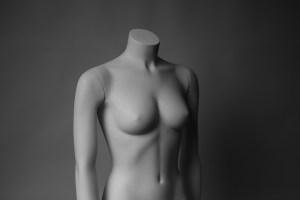
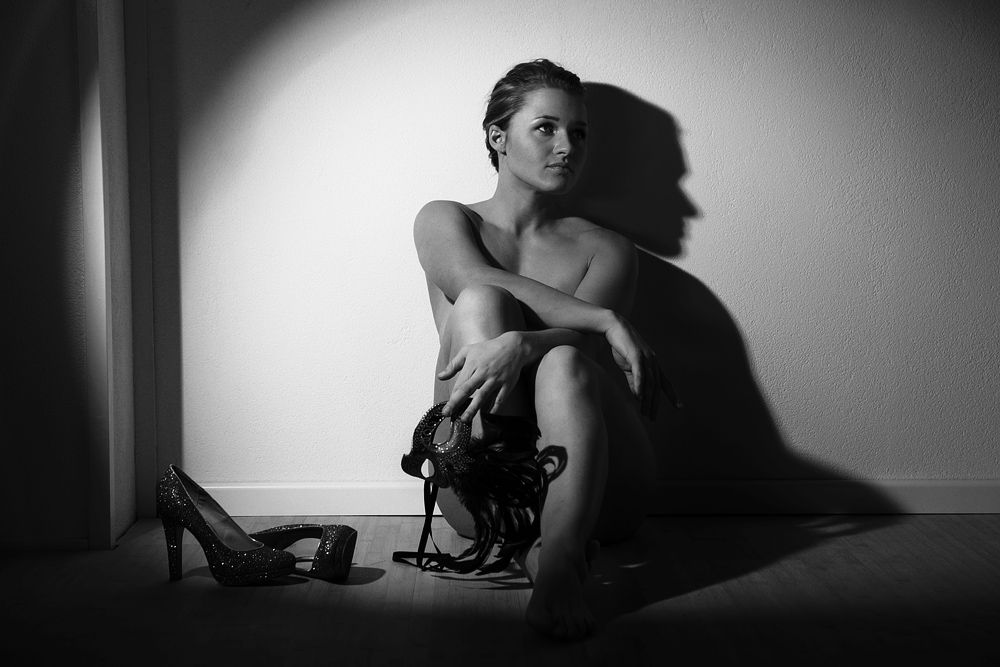
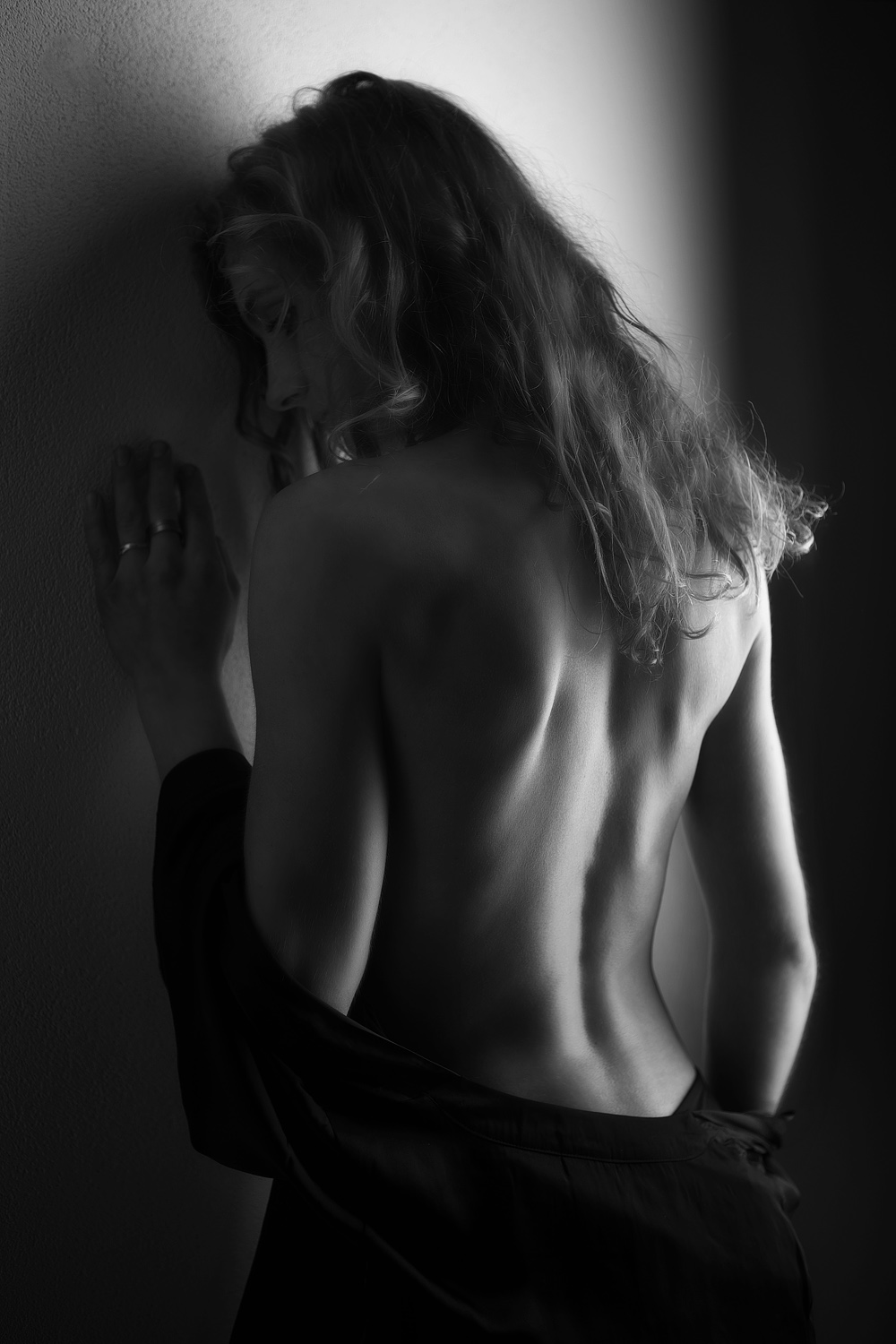
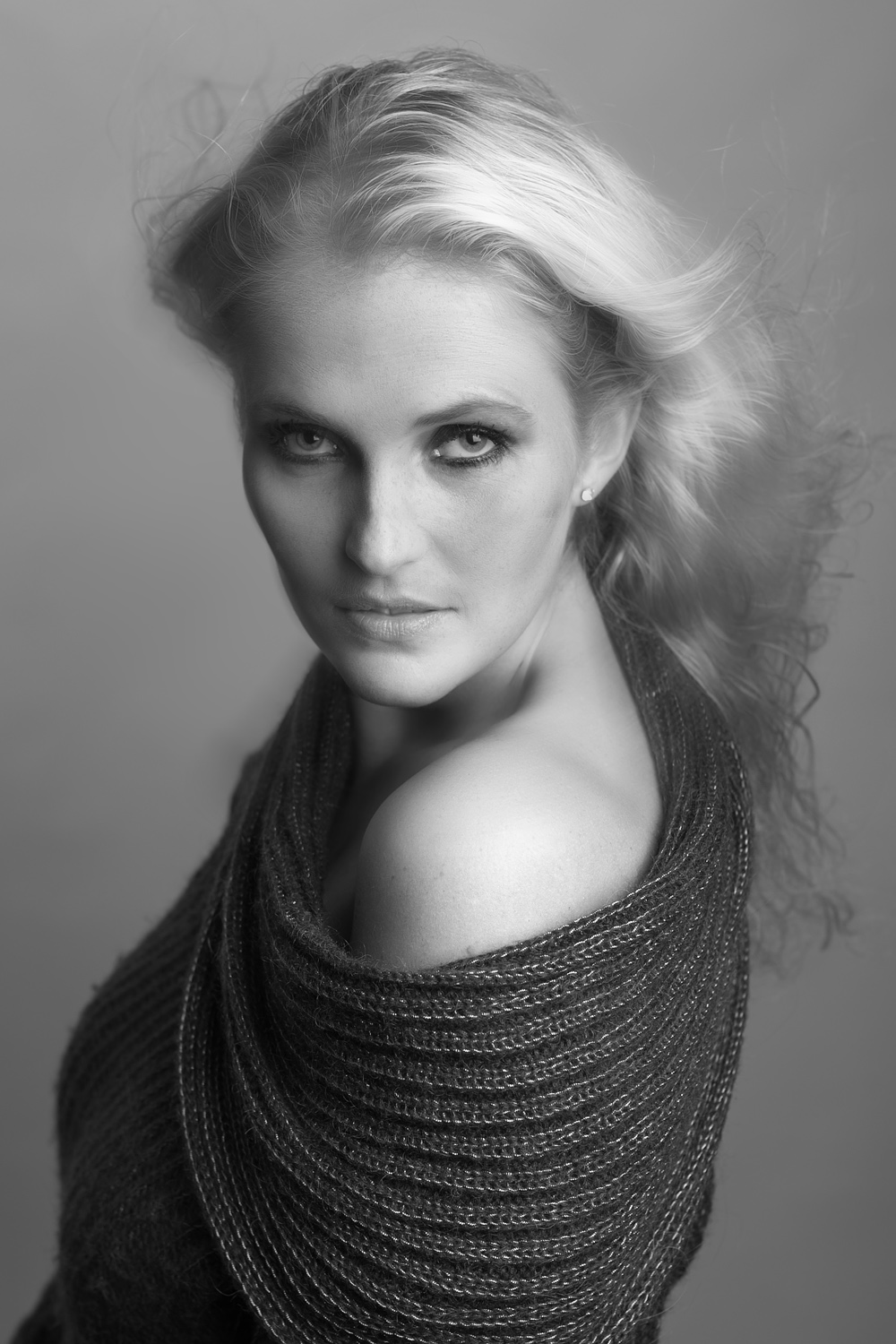
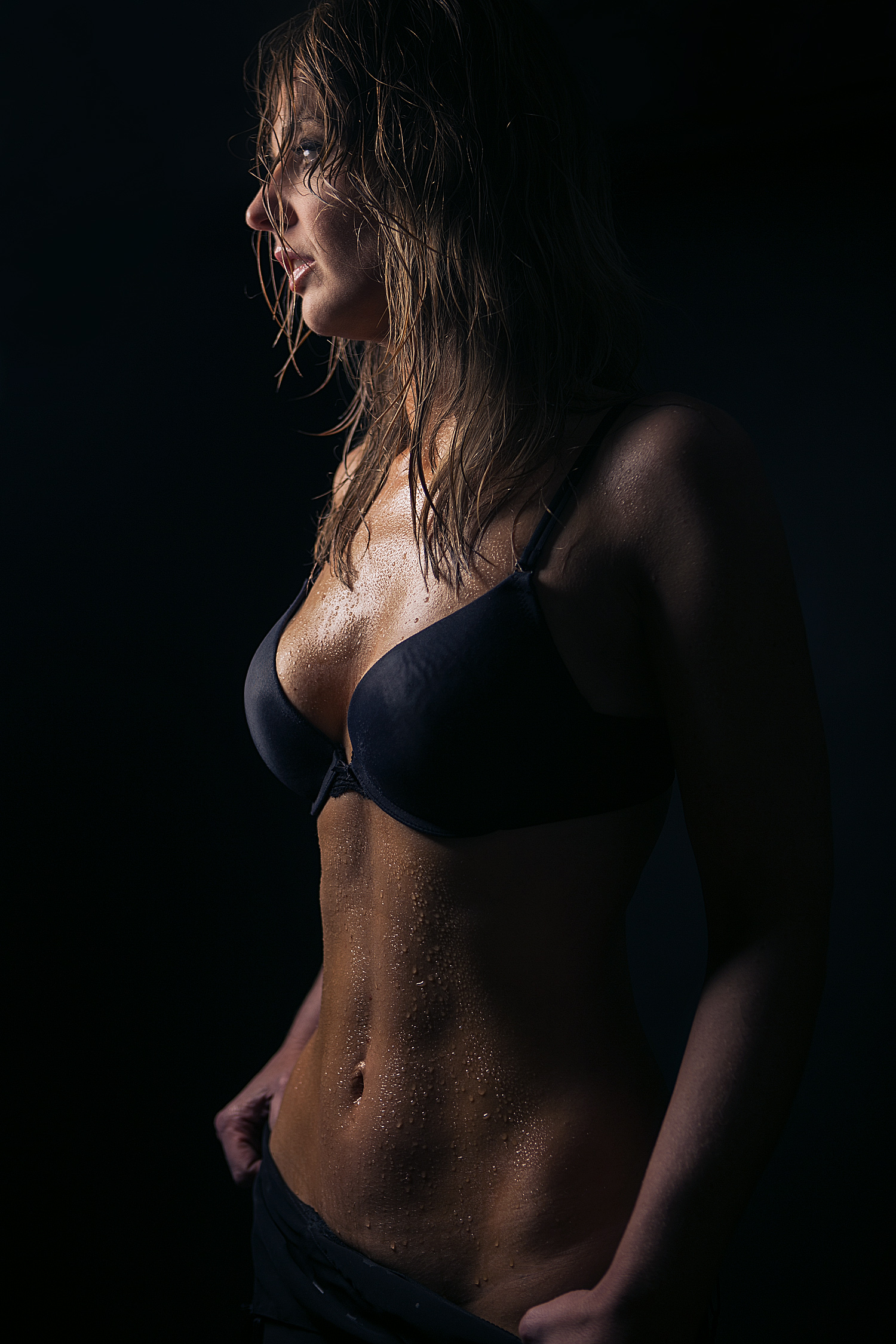
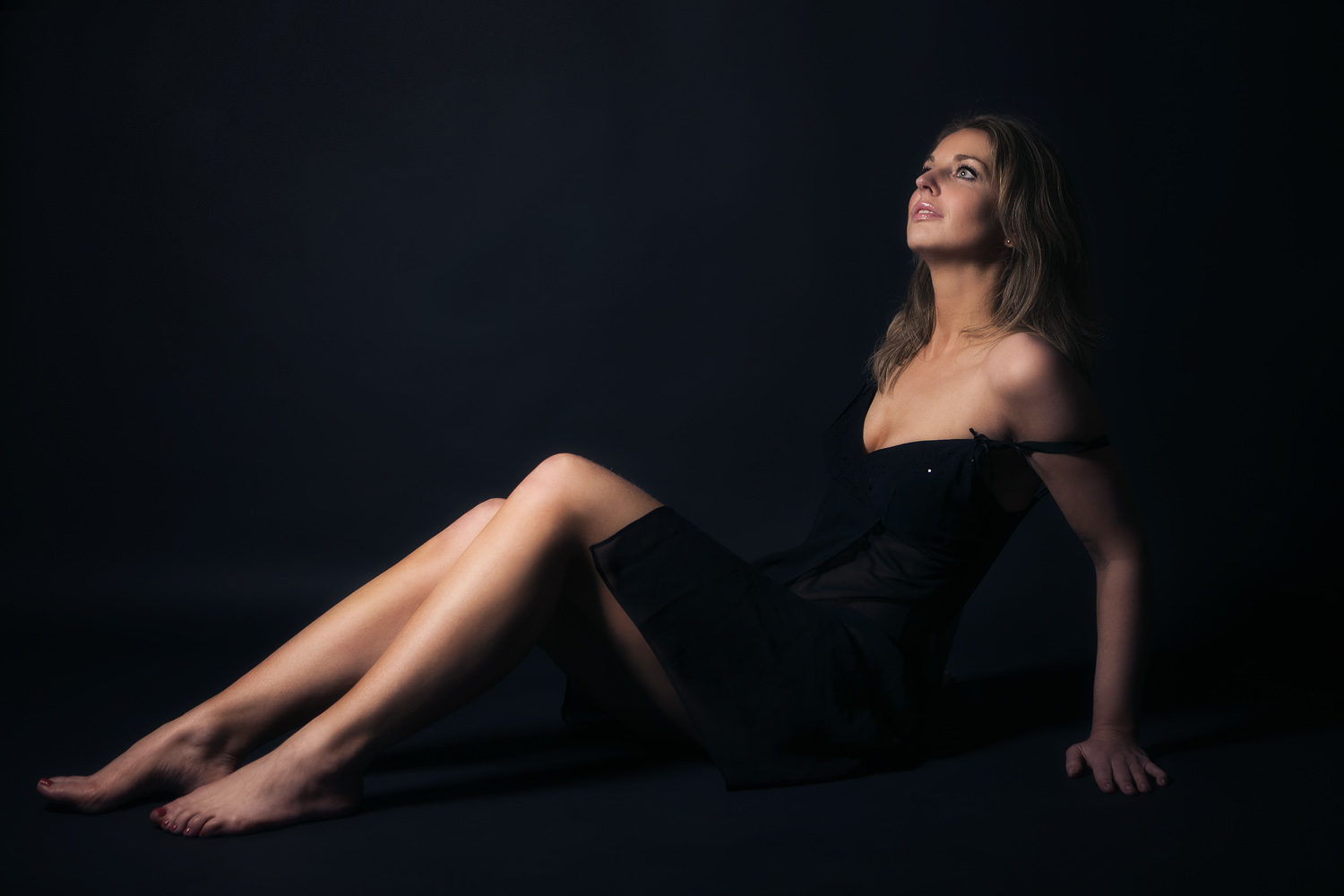
As an example, look at the following two images; the first is the original, the 2nd has a Black & White adjustment layer added at 100%. It’s a simple method and often a mask is needed to avoid drowing shadowy areas such as the eyes, but it’s a simple technique to add some punch to your photos.

Color grading itself could be an entire study. An interesting video that explains it for film is at http://vimeo.com/65617394
In Photoshop though, an always-interesting Phlearn tutorial shows how to do things in Photoshop; see http://phlearn.com/how-to-apply-cinematic-color-grading-to-your-photos
These two videos are a great introduction to learn more about bending your colors in Photoshop, to give a more special mood to your images.





 Ruud van Gaal